Fetch components,
straight into Altium Designer
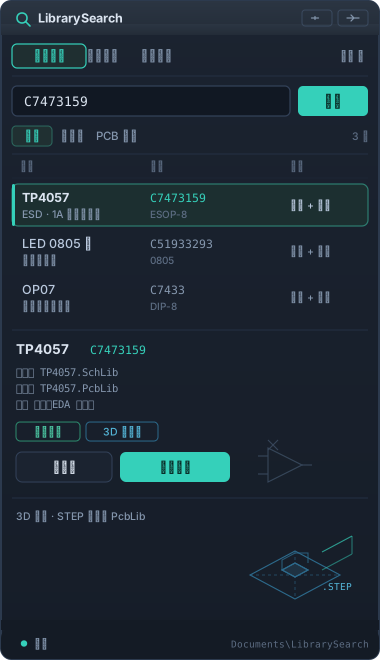
Type a component number such as C7473159. LibrarySearch fetches the schematic symbol, PCB footprint and 3D STEP model from the official JLCEDA / EasyEDA library, converts them into native Altium libraries, adds them to your project, and lets you search and place them right away. Or just point it at a folder to auto-index the libraries you already have.
Key features
Fetch components online
Enter a component number (e.g. C7473159, TP4057) and fetch symbol plus footprint on demand from the official JLCEDA / EasyEDA library, converted into native SchLib / PcbLib. Inspect symbols, footprints and conversion warnings before placing; paired library files are copied into your project automatically.
Automatic local-library indexing
Pick a folder and the plugin scans subdirectories for SchLib, PcbLib and IntLib files, reading each component's real in-library name — no more hand-maintained TSV tables. IntLib sources get extracted copies you can open; originals are never modified, and unchanged files reuse the index cache.
3D models with components
Online fetch also tries the source library's STEP model and embeds it directly into the PcbLib — no external model paths to configure. When no STEP exists or the download fails, the 2D footprint is kept and you can retry from the More menu; the detail pane shows the 3D status.
Native AD24 dark panel
A dockable panel styled to match the AD 24.3 dark UI. Source tabs (Online / My Components / Local Index), a font-based responsive layout and owner-drawn buttons avoid clipped or discolored text in narrow docks and high DPI.
Three steps to start
Install and open the panel
Save your work and fully exit AD, extract the package completely, then double-click Install.cmd. Restart AD and pick LibrarySearch from the Panels menu at the bottom right.
Fetch by number
Switch to Online, type e.g. C7473159 and click Fetch. Filter by All / Schematic / Footprint, then use View Library to check pins and dimensions first.
Place into the project
Activate the target schematic and click Place Symbol, then click on the canvas. Libraries are saved with the project — finish with Design → Update PCB and review the ECO as usual.
Recommended first components
The four numbers below cover four typical shapes: a plain IC, a polarized part, an op-amp and a multi-unit device — test these first.
| Number | Component | What to check |
|---|---|---|
C7473159 | TP4057 | Symbol, 6 pins and paired footprint; pale-yellow IC body |
C51933293 | LED 0805 | Hollow triangle, K/A marks, connection points at pin ends |
C7433 | OP07 | Op-amp triangle, four-way connection points, footprint link |
C6964 | TL074 | Multi-part A/B/C/D, shared footprint and power pins |